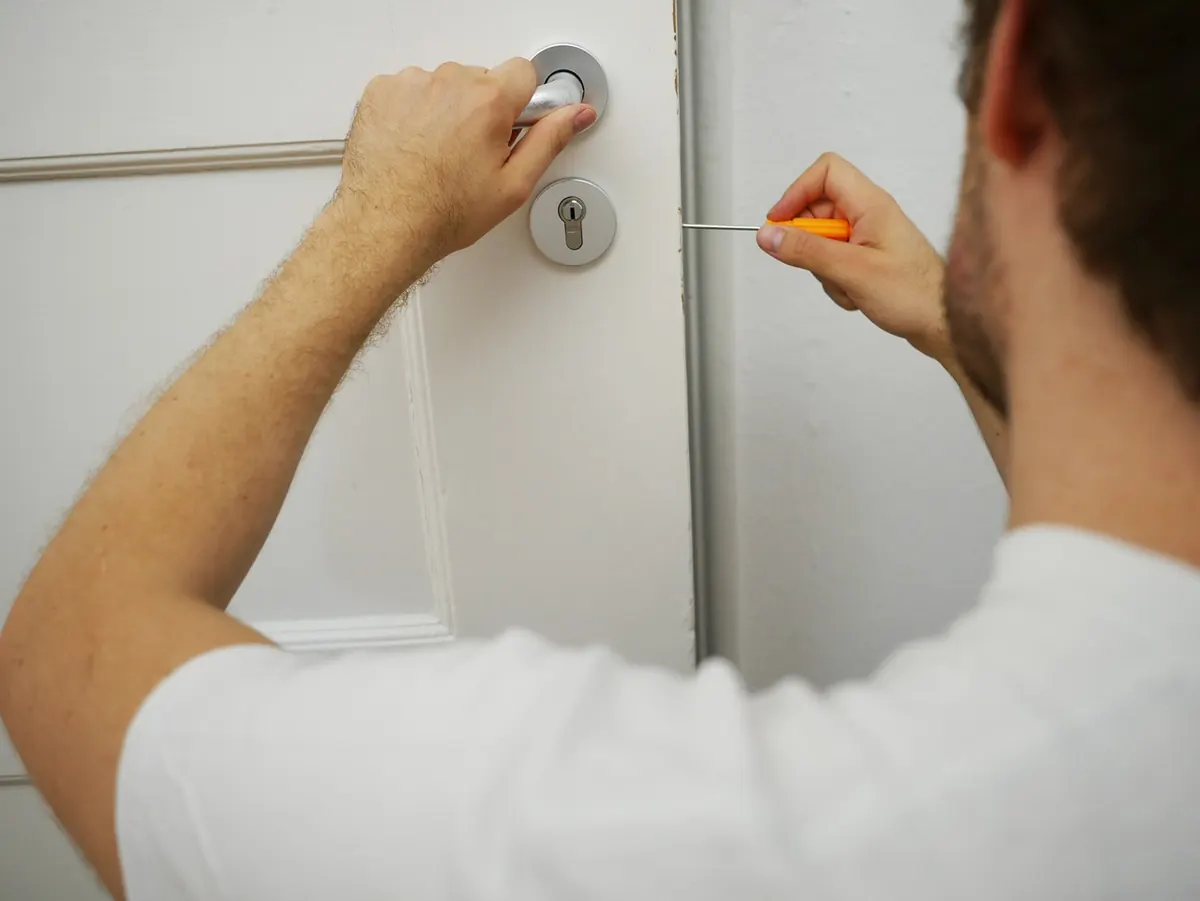
Two-Factor Authentication Checklist for Your Most Important Accounts
A practical, account-by-account checklist for adding two-factor authentication, storing backup codes...

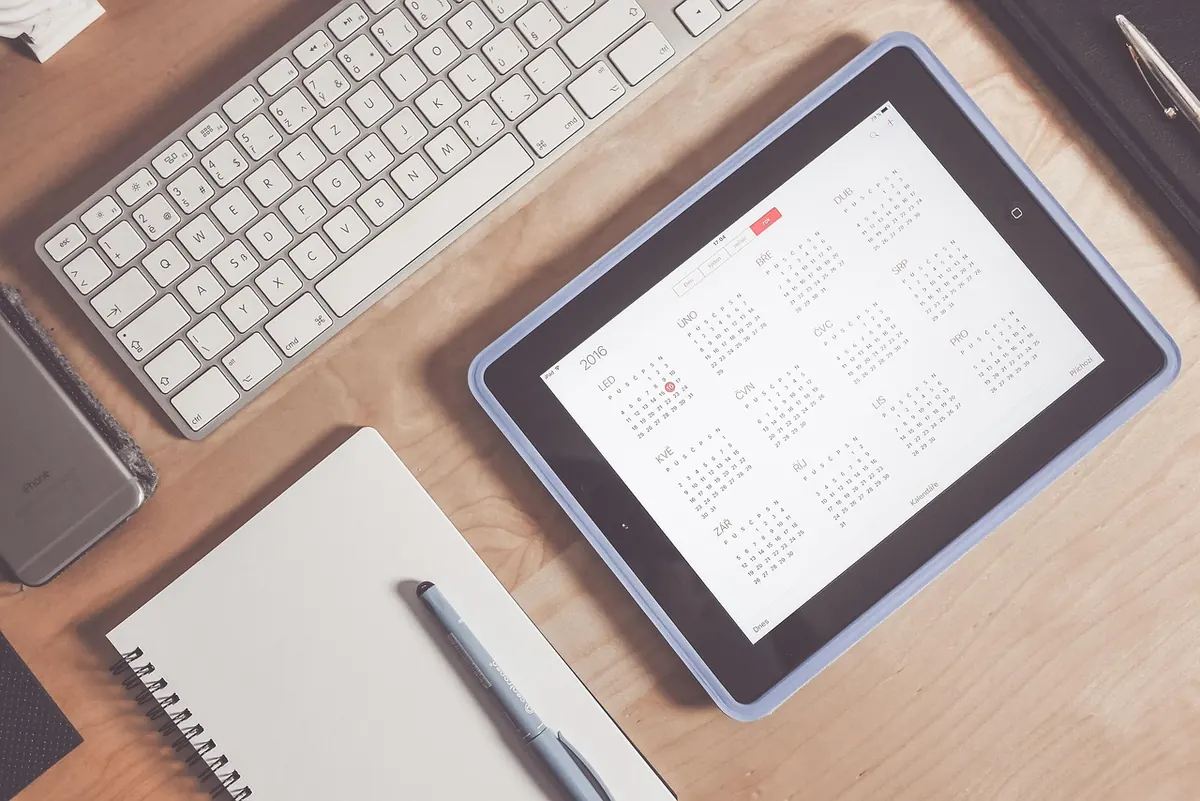
Plenty of UK home workers share the same quiet worry: the laptop earning their living gets patched on the same schedule the office machine once did, which is to say whenever someone else remembered. When IT support is a colleague in another time zone — or nobody at all — the routine has to become yours.
The good news is that it doesn't need to be a project. Half an hour, once a month, covers almost everything that actually matters: updates, backups, accounts and the small pile of gadgets you've half forgotten. Here's a checklist built for that half hour.
Open Windows Update in Settings and check manually rather than waiting for the notification to nag you at an awkward moment. Look at Advanced options as well — driver and optional updates often sit there untouched for months. On a Mac, head to System Settings, then General, then Software Update, and check the App Store's Updates tab too.
The single most common mistake is closing the lid on a pending restart. A patch that hasn't been applied isn't protection. Restart properly, with the charger plugged in, and let the machine finish the job before you start work.
Don't forget the firmware layer. Many business laptops ship with a vendor tool — Lenovo Vantage, Dell Command Update, HP Support Assistant and similar — that carries BIOS, chipset and driver fixes Windows Update skips. If your phone handles work email, calendar or two-factor codes, treat it as a work device and patch iOS or Android on the same day.
For many people, the browser is the work app. In Chrome, open the three-dot menu, then Help, then About Google Chrome, and the version check runs on the spot. Firefox, Edge and Safari work in a similar way, but they all need a proper restart to finish updating.
Then audit your extensions, which is where browsers quietly accumulate risk. Remove anything you don't recognise, anything you haven't used in a month, and anything whose permissions look wider than its job — a coupon finder that can read all your data on every site is a poor trade. Keep work and personal browsing in separate profiles if you can: separate logins, separate extensions, less cross-contamination.
Communication tools are usually well behaved, but check them anyway. Teams, Slack and Zoom all have a manual check-for-updates option buried in their settings menus. Desktop Microsoft 365 apps, Adobe Acrobat and similar tools often update only when you open them and leave them open long enough.
The overlooked ones cause more trouble than the obvious ones:
While you're in there, uninstall anything you haven't opened in six months. Every extra program is another thing that needs patching and another way in.
Check that your last backup actually completed — not that it was scheduled, but that it ran. Then restore something to prove it works. Pick a folder you don't need, pull a file back from last week, and open it. Many people discover their backup was failing only on the day they needed it.
Cloud sync is not a backup. If you delete a file in a synced folder, the deletion syncs everywhere within seconds. Version history softens that, but it isn't a substitute for a second copy on separate media, ideally with one copy kept somewhere other than your desk. An external drive that lives in the same bag as the laptop travels to the same disasters.
If you handle other people's data, your contract or your client's terms probably set out what's required. Check those terms rather than guessing, and take professional advice if anything is unclear.
Once a month, review where you're signed in. Microsoft, Google, Apple, Slack and most banks show you a list of active devices and sessions. Sign out of the ones you don't recognise or no longer use, and delete old phones from the list. Then confirm your recovery email address and phone number are current — they're what stands between you and a locked account.
Turn on two-factor authentication for email, cloud storage and anything holding client data. An authenticator app or a hardware key is stronger than a text message, but a text message is far better than nothing. Keep passwords unique per site; a password manager makes that realistic rather than heroic, and a reputable breach-check service will tell you if an old address has appeared in a leak.
UK inboxes attract a steady stream of convincing fakes: HMRC refunds, Royal Mail delivery fees, bank security alerts, energy rebates. Never click through from a message. Open the site or app directly and check there. If you've been caught out, contact your bank immediately and report it to Action Fraud.
Log into your router's admin page, make sure the admin password isn't the factory default, and install any firmware update the manufacturer offers. Restart it while you're there — a monthly reboot clears the sort of slowdowns that get blamed on your broadband. If your router supports a guest network, put visitors and smart plugs on it rather than your main Wi-Fi.
Finally, look at the physical setup. Replace frayed cables and chargers that run uncomfortably hot, clear dust from vents, and check that your screen locks when you step away. None of it is glamorous, but it's the difference between a machine that lasts and one that fails at the worst possible moment.
Do it on the first working Monday of the month, or tie it to something you already do — paying the bills, watering the plants, filling in a timesheet. Half an hour, one diary reminder, and the machine that pays your mortgage stays quietly dull, which is exactly what you want from it.
Photo: Pexels / Pixabay
A practical, account-by-account checklist for adding two-factor authentication, storing backup codes...
Free writing tools suit occasional jobs, but paid plans buy capacity, consistency, data safeguards and...
Cold weather slows the chemistry inside lithium-ion batteries, so your phone can die at 40 per cent. Here...